
Lotus365 Deposit Not Showing — Why It Happens and Exactly What to Do
You opened the Lotus365 app, deposited ₹500 via UPI — the money left your bank account, you got the payment success notification — but your Lotus365 balance is still showing zero. The deposit is simply not showing up in your Lotus365 wallet.
This is one of the most common and most stressful situations Lotus365 players face. The good news is that in the vast majority of cases your money is completely safe — it has been sent successfully but not yet credited to your Lotus365 account. This guide explains exactly why this happens, what to check immediately, and how to get your balance updated fast.
Table of Contents
What “Deposit Not Showing” Actually Means
Before anything else, understand what is actually happening when your Lotus365 deposit is not showing.
When you pay via UPI — GPay, PhonePe, Paytm or any UPI app — the payment journey has two separate stages:
- Stage 1 — Your bank sends the money. Your UPI app shows “Payment Successful.” ₹500 is debited from your bank account. This part worked fine.
- Stage 2 — Lotus365 receives and credits the payment. The platform needs to receive confirmation from the payment gateway, match your payment to your account using your UTR number or reference ID, and then credit the amount to your Lotus365 wallet.
“Deposit not showing” means Stage 1 is complete but Stage 2 has not finished yet.
Your money has not disappeared. It has not been lost. It is sitting between your bank and your Lotus365 wallet — in transit, waiting to be credited. In most cases this resolves automatically within a few minutes to a few hours. In some cases it needs a small action from you or from support to trigger the credit.
Why Your Lotus365 Deposit Is Not Showing
Reason 1 — App Has Not Refreshed Yet (Most Common)
The most frequent cause — and the easiest fix. Your Lotus365 app is displaying a cached version of your balance from before the deposit was made. The credit may have already happened on the server side, but the app has not fetched the updated balance yet.
How to check: Pull down on your wallet screen to refresh, or close the app completely and reopen it. Log out and log back in. In most cases the updated balance appears immediately after a proper refresh.
Reason 2 — Payment Gateway Processing Delay
Your UPI payment goes through a payment gateway before it reaches the Lotus365 platform. Payment gateways — the intermediary systems that process UPI transactions — occasionally experience delays during high-traffic periods. IPL match days, weekend evenings and peak hours between 8 PM and 11 PM IST are when gateway delays are most common.
During these periods a payment that normally credits in 30 seconds can take anywhere from 5 minutes to 2 hours to reflect in your Lotus365 wallet. The payment gateway has received the money but has a queue of transactions to confirm.
Reason 3 — UPI Transaction Is Still Pending at Bank Level
Sometimes what appears to be a “Payment Successful” notification on your UPI app is actually a pending status on the bank’s side. Some UPI apps show an optimistic success message before the bank has fully settled the transaction.
How to check: Open your bank’s official app — not your UPI app — and check your account statement. Look for the ₹500 debit entry. If it shows as pending or in process rather than as a confirmed debit, the payment has not fully settled yet. In this case the Lotus365 deposit will only reflect once the bank completes the transaction.
Reason 4 — Wrong Payment Reference or Incorrect UPI ID
If you typed the UPI ID manually instead of scanning a QR code, there is a chance the payment went to the wrong recipient. A single character error in a UPI ID routes the payment to a completely different account.
Similarly, if the payment reference or description field was left blank or filled incorrectly during a bank transfer, the Lotus365 system may not be able to automatically match your payment to your account — causing it to sit in the unmatched payments queue.
How to check: Open your UPI app and check the recipient details on the payment confirmation. Verify the UPI ID exactly matches what you were given. If there is any discrepancy, contact support immediately with the UTR number.
Reason 5 — Bank Maintenance or System Outage
Indian banks have scheduled maintenance windows — typically between 1 AM and 5 AM but sometimes at other hours. During these windows, incoming transfers may be queued and processed once maintenance completes. If you deposited during or just before a maintenance window, your credit may be delayed until the bank’s system comes back online.
Reason 6 — Duplicate Payment Detection
If you deposited, did not see the balance update, and immediately deposited again — the system may flag the second payment as a potential duplicate and hold both for manual review. This is a fraud-prevention measure. Contact support if you made two deposits in quick succession.
Reason 7 — First Deposit on a New Account
First deposits on newly created accounts sometimes go through additional verification before being credited. This is standard on all legitimate betting platforms. The system verifies the deposit source matches the account details before crediting. First deposits may take slightly longer than subsequent ones.
What to Do Right Now
Step 1 — Do NOT Pay Again
This is the most important instruction. Do not make a second payment before confirming the first one has failed completely. If your ₹500 is genuinely in transit, making another payment means you have sent ₹1,000 total. Getting a refund for a duplicate payment is possible but takes time and creates unnecessary complications.
Wait and work through the steps below before making any additional deposit.
Step 2 — Refresh the App Properly
Close the Lotus365 app completely — swipe it away from recent apps, do not just press the home button. Reopen it. Log out and log back in. Check your wallet balance.
On mobile browser: clear the page cache (hold refresh button in Chrome → Clear Cache → Reload) and check again.
Step 3 — Check Your Bank Statement (Not Just the UPI App)
Open your bank’s official app — not PhonePe, not GPay — and look at your account statement. Find the ₹500 debit entry. It should show as:
- Debited / Completed — money has left your account. Now check Lotus365 deposit history.
- Pending / In Process — bank has not settled it yet. Wait 30–60 minutes and check again.
- No entry / Not showing — the UPI app may have shown a false success. Your money may not have actually left your account.
Step 4 — Find Your UTR Number
Your UTR (Unique Transaction Reference) number is the single most important piece of information for resolving a missing deposit. It is a 12-digit reference number assigned to every bank transfer in India.
Where to find your UTR number:
- GPay — tap the transaction → scroll down → see “Bank reference number” or “UTR”
- PhonePe — tap the transaction → see “Transaction ID” or “Bank Reference Number”
- Paytm — transaction history → tap the payment → see “Bank Reference Number”
- Your bank app — account statement → tap the debit entry → transaction details → UTR or Reference Number
Write it down or screenshot it. You will need this when contacting support.
Step 5 — Check Your Lotus365 Deposit History
In the Lotus365 app, go to Wallet → Transaction History or Deposit History. Look for the ₹500 entry. It may show as:
- Credited / Success — money is in your account but the balance display did not refresh. Log out and back in.
- Pending — deposit is in the queue, being processed. Wait and check again in 30 minutes.
- Failed — the payment did not reach the platform. You will need to contact support with your UTR to investigate.
- Not listed at all — the payment has not been matched to your account yet. This needs support escalation.
Step 6 — Wait 30 Minutes Before Contacting Support
For standard UPI deposits, 30 minutes is a reasonable wait after a confirmed bank debit. If after 30 minutes your balance has still not updated and the transaction shows as completed in your bank, proceed to contact support.
Step 7 — Contact Support With Proof
Contact us on WhatsApp with the following information:
- Your Lotus365 username
- The deposit amount — ₹500
- Date and time of the payment
- Your UTR number — the 12-digit bank reference
- A screenshot of the payment confirmation from your UPI app
- A screenshot of your bank statement showing the ₹500 debit
With these details, our team can trace the payment, locate it in the gateway records, and manually credit it to your account. Most manual credit requests are resolved within 1–2 hours of contacting support.
What a Screenshot Proves and What It Does Not
When you contact support about a missing deposit, you will be asked for a payment screenshot. Understanding what happens with that screenshot helps you provide the right information.
A screenshot from your UPI app proves: that you initiated a payment and your UPI app confirmed it was processed.
A screenshot alone does not automatically trigger a credit: The support team verifies your payment through the actual banking records and payment gateway logs — not just the screenshot. The screenshot is used to locate your specific transaction in the system using your UTR number.
This is why the UTR number is essential. The UTR allows the team to find your exact transaction in thousands of daily payment records. Without the UTR, locating your specific ₹500 payment among all transactions on that day is extremely difficult and slows down resolution.
Always save: Your UPI payment screenshot AND your UTR number. Save both the moment you make any deposit — before any issue arises — so you have them ready if needed.
Lotus365 Deposit Not Showing
Aapne ₹500 deposit kiya lekin Lotus365 balance mein nahi aaya? Yeh steps follow karein:
Step 1: App band karein aur dobara kholein — login se logout karke wapas login karein. Balance refresh hoga.
Step 2: Apne bank ki official app mein jaayein — ₹500 ka debit confirm karein. Agar “pending” dikh raha hai toh 30 minute wait karein.
Step 3: Apna UTR number save karein — GPay/PhonePe mein transaction details mein milega. Yeh 12 digit ka reference number hai.
Step 4: Lotus365 app mein Wallet → Transaction History check karein — deposit ka status dekkhein.
Step 5: 30 minute baad bhi balance nahi aaya toh WhatsApp par contact karein — apna username, ₹500 amount, UTR number aur payment screenshot bhejein.
Sabse zaroori baat: Dobara payment mat karein jab tak pehli payment confirm na ho.
FAQs About Lotus365 Deposit Not Showing
I deposited ₹500 on Lotus365 but my balance is not updated?
Your payment has likely been sent successfully from your bank but not yet credited to your Lotus365 wallet. This is a delayed deposit — not a lost payment. Refresh the app, log out and back in, and check your Lotus365 transaction history. If the balance still does not appear after 30 minutes, contact support with your UTR number and payment screenshot.
Money was deducted from my account but Lotus365 balance did not increase?
No — your money is not gone. When UPI payment is deducted but Lotus365 balance does not update, the payment is in transit between the payment gateway and the Lotus365 platform. In most cases it credits automatically within 30 minutes to 2 hours. Save your UTR number and contact support if it does not appear within that window.
What is a UTR number and where do I find it?
UTR stands for Unique Transaction Reference — a 12-digit number assigned to every bank transfer in India. You find it in your UPI app’s transaction details: in GPay it is called “Bank Reference Number”, in PhonePe it is “Transaction ID” or “Bank Reference Number”, in Paytm it is “Bank Reference Number”. Always save this number when you make a deposit.
Should I deposit again if my first deposit is not showing?
No — do not make a second deposit until you have confirmed the first one genuinely failed. If your money is in transit and you deposit again, you will send double the amount. Contact support with your first payment’s UTR number first. Only make a new deposit after support confirms the original payment was not received.
How long does a Lotus365 UPI deposit take to reflect?
Standard UPI deposits on Lotus365 reflect within 30 seconds to 5 minutes in normal conditions. During high-traffic periods like IPL match evenings, it can take 30 minutes to 2 hours. If it has been more than 2 hours and your bank statement confirms the debit, contact support immediately.
What if I sent the payment to the wrong UPI ID?
If you typed the UPI ID manually and sent it to a wrong ID, the money has gone to a different recipient. Contact your bank immediately — you can raise a “wrong transfer” complaint directly with your bank. Also contact Lotus365 support with your UTR number so they can check whether the payment reached their gateway or not. Banks can sometimes reverse wrong transfers if raised within a few hours.
Can I get a refund if my Lotus365 deposit fails?
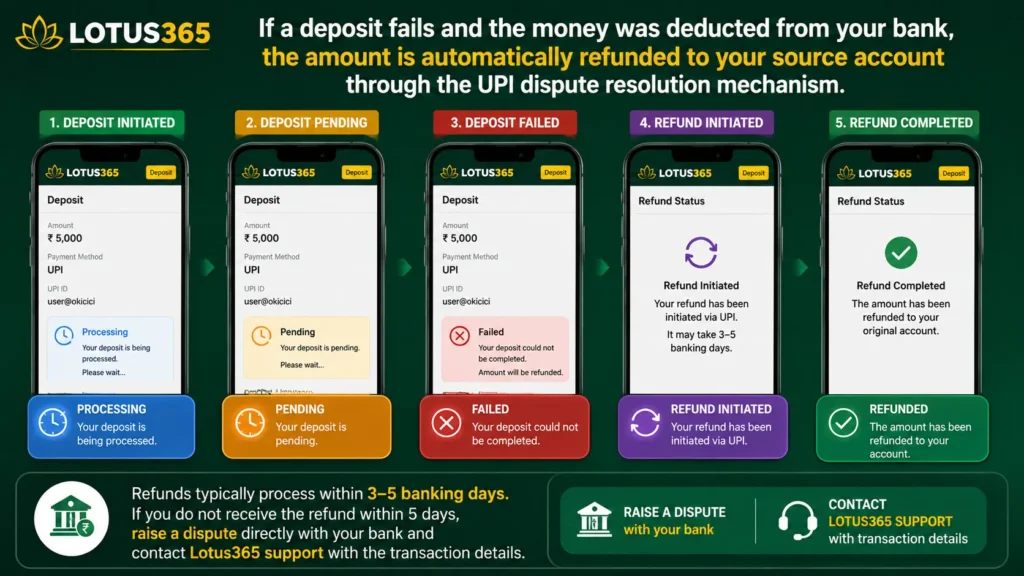
If a deposit fails and the money was deducted from your bank, the amount is automatically refunded to your source account through the UPI dispute resolution mechanism. Refunds typically process within 3–5 banking days. If you do not receive the refund within 5 days, raise a dispute directly with your bank and contact Lotus365 support with the transaction details.

10 years experience in Indian online betting, specialist in cricket exchange markets and Lotus365 platform